
Google Color Picker is a built-in Google Search tool for choosing colors and converting color codes. You can open it by searching for “color picker” or entering a supported color value, such as #008080. It is useful when you need a specific shade for a presentation, graphic, or website. Source: Google Search Help
The main benefit is precision. Instead of describing a shade as “a darker teal,” you can share its exact code and use it consistently across your work.
How to Open Google Color Picker
- Open Google Search.
- Search for color picker.
- Use the interactive color controls to select a shade.
- Select and copy the displayed color value you need.
- Paste it into your design application’s custom color field.
You can also start with a known value. Google documents searches such as rgb 255 255 255, #f0f0f0, and color f0f0f0. This is convenient when you already have a brand color and need its equivalent in another format. Source: supported searches
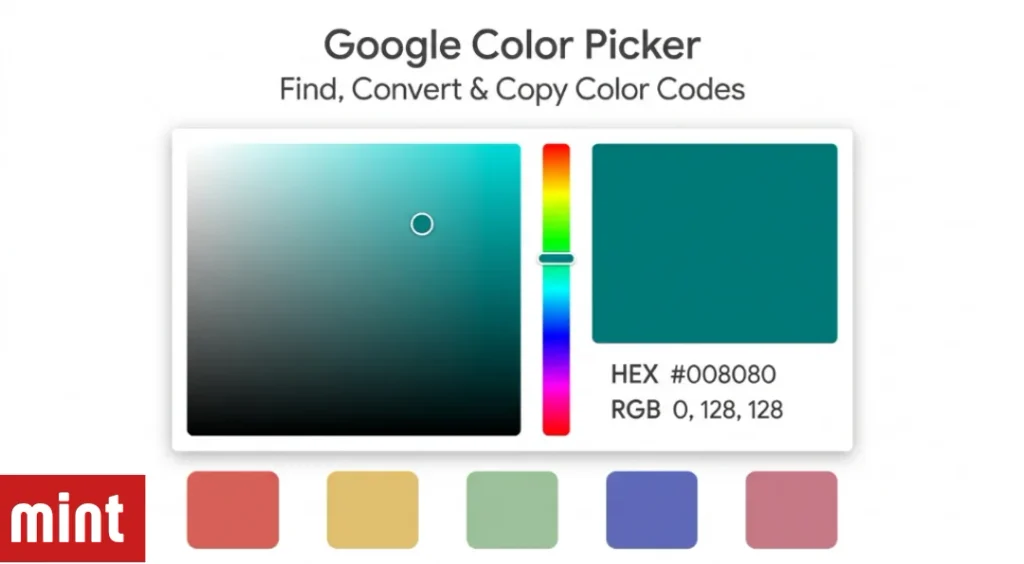
When copying, check what the destination field expects. A HEX field may accept #008080, while an RGB control may require three separate numbers.
Understanding the Color Formats
Google lists HEX, RGB, HSV, HSL, and CMYK as conversion outputs. These formats describe colors in different ways; the right choice depends on where you plan to use the value. Source: Google’s conversion documentation
| Format | What it describes | Typical use |
|---|---|---|
| HEX | Red, green, and blue values written in hexadecimal | Website styling and custom color fields |
| RGB | Amounts of red, green, and blue light | Screen graphics and digital design |
| HSL | Hue, saturation, and lightness | Adjusting a color’s character in CSS or design tools |
| HSV | Hue, saturation, and value | Visual color selection |
| CMYK | Cyan, magenta, yellow, and black ink components | Print production workflows |
For web work, HEX and RGB are often the most straightforward choices. HSL can be easier to understand when you want to change lightness or saturation while retaining a similar hue.
A Simple HEX-to-RGB Example
The teal color #008080 corresponds to rgb(0, 128, 128).
A six-digit HEX code contains three pairs: the first represents red, the second green, and the third blue. In this example, 00 equals zero and 80 equals 128. Both notations describe the same sRGB color. Source: W3C CSS color specification
This is helpful when one application gives you a HEX code but another asks for separate RGB values. You are changing the notation, not intentionally changing the shade.
How to Use a Selected Color Well
Begin with the element you are designing. A page background, small label, and decorative illustration have different requirements, even when they use the same brand palette.
For example, you might choose teal for a presentation heading, then reuse its exact HEX code for chart accents. Record that value with a descriptive label such as “Primary teal” so collaborators can reproduce it.
After applying the color, inspect it in context. A swatch viewed alone does not show how it interacts with nearby text, images, or backgrounds. Check the actual slide, graphic, or page before treating the choice as finished.
For printed materials, ask the printer for its required color profile and file settings. A generic CMYK conversion is not a guarantee of a particular printed appearance: CMYK interpretation depends on the printing conditions. Source: W3C discussion of device-dependent CMYK
Check Contrast Before Using Colors for Text
Selecting an appealing color does not establish that text will be readable against its background.
WCAG Level AA requires a contrast ratio of at least 4.5:1 for ordinary text and 3:1 for large text, subject to the criterion’s exceptions. Large text generally means at least 18-point regular text or 14-point bold text. Source: W3C contrast requirements
Check the foreground and background together. If the combination falls short, adjust one of the colors and test again. A color code by itself cannot establish contrast because the result depends on the pair.
For website work, Chrome DevTools provides a separate color picker with contrast information for supported text situations. This lets you inspect a color where it is actually being used. Source: Chrome DevTools color documentation
Google Search Color Picker vs. Chrome’s Color Picker
These are different tools.
The Search tool is convenient for finding and converting a color. Chrome DevTools is designed for inspecting and editing colors on a webpage. Its picker includes an eyedropper and support for additional color formats, making it useful when working with an existing page. Source: Chrome’s color picker guide
For extracting a color from an image, use an image editor or an appropriate eyedropper workflow. Choose a flat area when possible: shadows, compression, and softened edges can introduce nearby shades that differ from the original design color.
Why Google Color Picker Might Not Appear
Google advises checking the format of the submitted color code and notes that some browsers do not support the picker. Try the plain search color picker, then a valid example such as #008080. If necessary, try another browser. Source: Google’s troubleshooting guidance
Frequently Asked Questions
Are HEX and RGB different colors?
They can represent exactly the same color. For example, #FFFFFF and rgb(255, 255, 255) both represent white in sRGB. The difference is how the values are written.
Can Google Color Picker identify a brand’s official color?
A picker can display a supplied value, but it does not establish whether that value is an official brand specification. Use the organization’s brand guidelines when accuracy matters.
Why does the same color look different on another screen?
Display settings, brightness, color profiles, and viewing conditions can affect appearance. Keeping the code consistent preserves the specified value, although it does not guarantee identical viewing conditions.
Should I save the HEX or RGB value?
Use the format your application expects. For a shared digital palette, recording the HEX value alongside its RGB equivalent makes it easier to move between tools.
Discover more The Fame Mint