
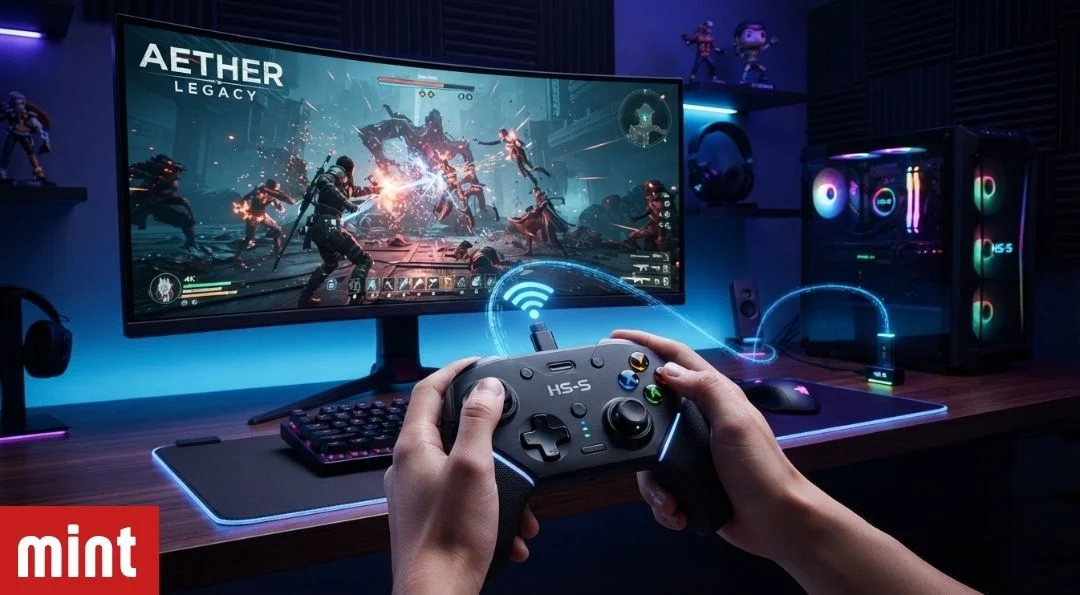
Connectivity HSSGamepad problems should be approached according to the controller’s connection type: Bluetooth, a USB cable, or a dedicated wireless receiver. Start by charging the controller, restarting both devices, and confirming that the gamepad is in the correct input or pairing mode. If it still does not work, remove its saved connection and pair it again.
An important limitation applies: publicly available pages use the name “HSSGamepad,” but a clearly documented product range, model number, and manufacturer-issued manual could not be independently verified. Exact button combinations, indicator-light patterns, supported platforms, and firmware instructions may therefore vary. Check the label and documentation supplied with your controller before following model-specific directions.
HSSGamepad Connection Options
Depending on the exact controller, one or more of these connection methods may be available:
| Connection | Typical use | What you need |
|---|---|---|
| Bluetooth | Phones, tablets, computers, and some TVs | A Bluetooth-compatible controller and host device |
| Wireless receiver | Computers, consoles, or TVs with USB | The receiver supplied with the controller |
| Wired USB | Computers and other supported devices | A data-capable USB cable |
| USB OTG | Compatible phones and tablets | A supported controller, cable, and OTG adapter |
Do not assume that every HSSGamepad supports all four methods. A USB port may be designed only for charging, while a wireless receiver may work with a limited selection of operating systems or devices.
Readers looking for broader controller and software coverage can explore Vocal News Media’s gaming articles and technology guides.
How to Connect HSSGamepad Through Bluetooth
Charge the controller before starting. Low power can prevent pairing or cause the connection to fail shortly afterward.
Next, place the controller in Bluetooth pairing mode using the directions for its exact model. This normally requires holding one or more buttons, but the correct combination cannot be confirmed for every device sold or described as an HSSGamepad.
Once the controller is discoverable:
- Open the Bluetooth settings on the phone, computer, tablet, or TV.
- Look for the controller under available or nearby devices.
- Select its displayed name and approve the pairing request.
- Wait until the device reports that the controller is connected.
- Test the buttons in the operating system or a compatible game.
Pairing confirms that two devices can communicate; it does not guarantee that a particular game supports controller input.
Connecting on Windows
On Windows 11, open Settings > Bluetooth & devices, enable Bluetooth, and select Add device. Choose Bluetooth, then select the controller when it appears.
These steps follow Microsoft’s current Bluetooth pairing guidance. Microsoft also advises checking the accessory’s own documentation because the method for making a device discoverable differs by product.
If HSSGamepad does not appear, verify that it is not connected to another phone or computer. Turn Bluetooth off on previously paired devices temporarily, restart the controller, and try again.
Connecting on Android
Open the Android Bluetooth menu, choose Pair new device, and select the controller from the list. Menu wording can vary by phone manufacturer and Android version.
Google’s official Android Bluetooth instructions explain how to pair, disconnect, and forget saved accessories. If the controller has already been saved but will not reconnect, forget it and complete a fresh pairing.
Connecting on an Apple Device
Put the controller into its documented pairing mode, open Bluetooth settings on the iPhone, iPad, Apple TV, or Mac, and select it when it appears.
Apple notes that game and feature support varies between controllers and apps. Its wireless game-controller guide also recommends forgetting and pairing the device again when it does not work as expected.
The controller may connect successfully yet remain unusable if Apple’s operating system or the selected game does not support its input profile.
Connecting With a Wireless Receiver
Some gamepads communicate through a dedicated 2.4 GHz receiver rather than normal Bluetooth. If your controller includes one, insert the original receiver into a compatible USB port and turn on the controller.
Allow the host device time to detect the hardware. If no input is registered:
- Try a different USB port.
- Remove any unpowered USB hub.
- Reconnect the receiver after restarting the host device.
- Check whether the controller has separate Bluetooth and receiver modes.
- Confirm that the receiver belongs to that exact controller.
Wireless receivers are not necessarily interchangeable, even when they look identical. Avoid downloading unofficial firmware or using a receiver from another brand unless the manufacturer explicitly confirms compatibility.
Using a Wired USB Connection
A wired connection is useful for determining whether a wireless problem originates with Bluetooth, radio interference, or the controller itself.
Use a cable capable of carrying data. Some USB cables provide power only, so a charging light does not prove that the host device can receive button inputs.
After connecting the cable:
- Wait for the operating system to recognize the controller.
- Check the device or controller settings.
- Test the buttons outside the game when possible.
- Launch a game known to support controllers.
- Review its input settings and select gamepad mode if necessary.
If wired input works but Bluetooth does not, the controller hardware may still be functional. Focus further troubleshooting on pairing, wireless interference, battery condition, and device compatibility.
How to Fix Common Connectivity HSSGamepad Problems
The controller does not appear in Bluetooth settings
Confirm that it is charged, close to the host device, and genuinely in pairing mode. Disconnect it from previously paired equipment and refresh the Bluetooth device list.
If the name still does not appear, restart both devices. Test the controller with another compatible host to determine whether the fault follows the controller.
HSSGamepad connects but buttons do nothing
This usually indicates an input-support problem rather than a failed Bluetooth connection.
Check whether:
- The game supports external controllers.
- Controller input is enabled in the game.
- The correct input mode is selected.
- Another controller or remapping utility is taking priority.
- The controller works in another compatible game.
A game can support certain Xbox or PlayStation controllers without supporting every generic Bluetooth input device.
The controller repeatedly disconnects
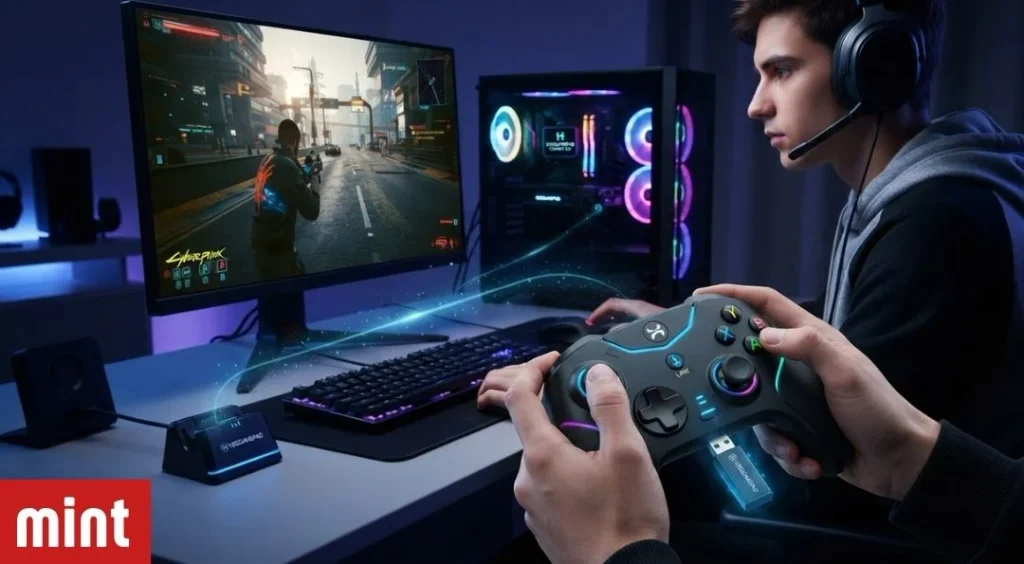
Charge it fully and reduce the distance between the controller and host. Move USB 3 devices, wireless receivers, and other Bluetooth equipment away temporarily to test for interference.
Remove the saved pairing, restart both devices, and reconnect. On a computer, install operating-system and Bluetooth-adapter updates from the computer or adapter manufacturer—not from an unknown driver-download website.
Button presses feel delayed
First determine whether the delay occurs in an offline game. If it appears only during online play, the cause may be network latency rather than controller connectivity.
For delay that also occurs offline:
- Move closer to the device.
- Disconnect unnecessary Bluetooth accessories.
- Try the supplied wireless receiver, if supported.
- Compare wireless performance with a wired data connection.
- Disable television image-processing features by enabling Game Mode.
Display processing can make controls feel slow even when the gamepad connection is functioning normally.
Avoid Unverified Firmware and Driver Fixes
Several online pages publish precise HSSGamepad firmware names, hardware identifiers, reset combinations, or system commands without linking to verifiable manufacturer documentation. Do not treat those instructions as confirmed merely because they appear technical.
Installing the wrong firmware can render a controller unusable. Changing system policies or removing drivers can also affect unrelated hardware. Use only software supplied through the controller maker’s confirmed support channel or the host device’s official update system.
When the Controller May Be Incompatible
A successful Bluetooth pairing does not establish complete compatibility. The host device must recognize the controller’s input protocol, and the game must accept that protocol.
Suspect incompatibility when the controller:
- Pairs but never registers button presses
- Works in one game but not another
- Operates on a computer but not a phone or console
- Appears as an unknown accessory rather than a controller
- Requires an undocumented companion application
Before buying an adapter or replacement receiver, identify the exact model printed on the controller and compare it with the manufacturer’s supported-device list.
Frequently Asked Questions
What does connectivity HSSGamepad mean?
The phrase generally refers to connecting or troubleshooting a controller described as HSSGamepad. It may involve Bluetooth, wired USB, or a dedicated wireless receiver, depending on the model.
Why does HSSGamepad connect but not work in a game?
The game may not support the controller’s input profile, or controller input may be disabled. Test the gamepad outside the game and confirm that the title supports external controllers.
Can HSSGamepad connect to an iPhone or Android phone?
Possibly, if the exact controller supports Bluetooth or a compatible wired connection and the phone’s operating system recognizes its input profile. Pairing alone does not guarantee that every game will accept it.
Should I install an HSSGamepad firmware file from a third-party website?
No. Install firmware only when its origin, model compatibility, and instructions can be verified through an authoritative manufacturer source. An incorrect file could damage the controller’s software.
What is the safest first fix for HSSGamepad connectivity?
Fully charge the controller, restart both devices, forget the existing Bluetooth pairing, and reconnect it using the instructions for the exact model. If that fails, test a data-capable USB cable or another compatible host device.
Read More The Fame Mint