

Conroe SSO is the single sign-on portal used by Conroe Independent School District students and employees. The district’s ClassLink platform provides one secure location for opening authorized educational and workplace applications without signing in separately to every service.
Users can access the portal at sso.conroeisd.net. Only students, employees, substitutes, and other authorized Conroe ISD users with district-issued credentials can sign in.
What is Conroe ISD SSO?
SSO means “single sign-on.” After a user enters an approved Conroe ISD username and password, the portal displays the applications assigned to that person’s account.
Available apps vary by role, campus, grade level, and department. They may include learning platforms, instructional resources, employee systems, and district email. Conroe ISD’s educational technology department, for example, directs students and teachers to access Canvas through ClassLink.
The portal does not create access to every district service automatically. Applications only appear when they have been assigned to the user.
How to access the official Conroe SSO login
Follow these steps to sign in:
- Visit the official Conroe ISD SSO portal.
- Enter your district username.
- Enter your current Conroe ISD password.
- Complete the required multi-factor authentication step, if prompted.
- Select the application you want to open from the ClassLink dashboard.
Employees can also reach the portal from the Conroe ISD employees page by selecting the SSO access option.
Bookmarking the official portal can make future access easier. Before entering credentials, check that the domain ends in conroeisd.net. Avoid signing in through unofficial login guides or links received from unknown senders.
Conroe SSO for students
Students use Conroe SSO to reach district-approved learning applications. The apps displayed depend on the student’s enrollment and assigned courses.
Some students may be permitted to use a ClassLink QuickCard. A QuickCard is a district-provided sign-in method, not a general QR code created by an outside website. Lost, damaged, or unreadable QuickCards should be reported through the student’s teacher or campus support channel.
Students who cannot find an expected application should first sign out and log back in. If the app remains unavailable, the account may need an assignment or roster update. The district’s ClassLink SSO resources for students cover missing apps, QuickCards, password problems, and multi-factor authentication image resets.
Students should never share a password, verification code, or QuickCard with friends.
Conroe SSO for employees
Employees use the same district SSO platform to access internal applications and links. Conroe ISD requires additional identity verification for protected staff accounts.
During first-time setup, an employee may be asked to:
- Replace a temporary password
- Select an approved multi-factor authentication method
- Add password-recovery information
- Confirm the correct staff security profile
Current district guidance lists Google Authenticator, SMS verification, and—in some cases—a security image as available authentication methods. Not every option is available to every user.
Conroe ISD advises employees to register a personal email address for account recovery instead of relying only on district email. A user locked out of SSO may also be unable to open the district mailbox needed to receive a recovery message.
How to reset a forgotten Conroe SSO password
Users with configured recovery details can begin a reset from the ClassLink login screen:
- Open the official Conroe SSO page.
- Select Help, I Forgot My Password.
- Enter your district username.
- Choose an available recovery method.
- Enter the verification code sent by email or text.
- Create a new password that satisfies the displayed requirements.
- Return to the login page and sign in again.
Conroe ISD’s current SSO password-reset instructions state that a new password must contain at least 10 characters and must not include three or more repetitive or sequential characters, such as “ccc,” “123,” or “abc.” Follow the requirements shown on the live reset screen because district policies can change.
After changing the password, update it manually on any phone, tablet, browser, or other device that previously stored the old one.
What to do if the account is locked
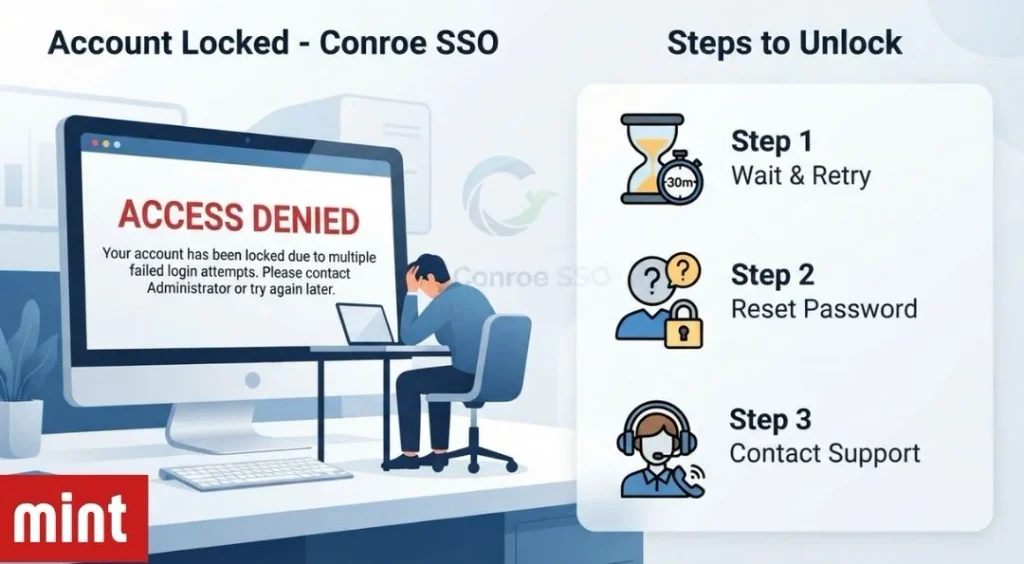
According to current district guidance, five unsuccessful login attempts can lock an account for 15 minutes. Wait for that period to pass before attempting another reset or sign-in. Repeated attempts during the lockout may delay recovery or create further confusion.
If the password-reset page reports success but the new password does not work, try Chrome or Microsoft Edge on another device. Conroe ISD notes that resets performed through Safari on an iPhone may occasionally fail to connect correctly to the account.
Do not send passwords or MFA codes in an email or support request.
Why an application may be missing
An expected app can disappear from the ClassLink dashboard for several reasons:
- The user is signed into the wrong district account.
- The app has not been assigned to the user’s group.
- Enrollment, employment, or roster data has recently changed.
- The app is temporarily unavailable.
- The dashboard needs to be refreshed after an account update.
Sign out fully, close the browser, and log in again before contacting support. If only one application is affected, mention its exact name when requesting help.
Is Conroe SSO the same as the Parent Portal?
No. Conroe SSO is intended primarily for district students and employees. Parents and guardians use the Conroe ISD Parent Portal for services assigned to family accounts.
This distinction also applies to Home Access Center. The official Home Access Center page directs students to sign in through Conroe ISD SSO while parents use the Parent Portal. A parent should not attempt to use a student’s SSO credentials.
Getting official Conroe SSO support
Users who still cannot access their accounts should contact their campus or the Conroe ISD Help Desk at help@conroeisd.net. Support staff may need to verify the user’s identity before changing account details.
Substitutes who do not know their SSO username or employee identification number should contact the district’s Substitute Office, as those details require identity verification.
When requesting assistance, provide your name, campus or department, the affected application, and the exact error message. Never include your password, authentication code, or security answers.
Frequently asked questions
What is the official Conroe SSO URL?
The official address is https://sso.conroeisd.net/. Confirm the domain before entering district credentials.
Can parents log in to Conroe SSO?
Parents generally use the Conroe ISD Parent Portal. Conroe SSO is the district application gateway for authorized students and employees.
Why is my new password not working on my phone?
Devices do not automatically replace saved credentials after a password reset. Remove or update the old password on every affected device and application.
How often do employee SSO passwords expire?
Current Conroe ISD setup guidance says ClassLink employee passwords expire every 90 days. Employees should follow reminders and instructions shown in their district account because security policies may be updated.
Read More At The Fame Mint